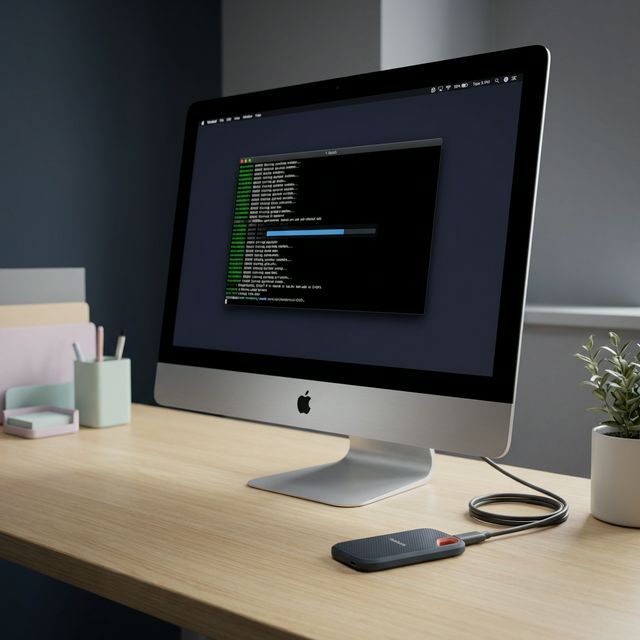
Failing hardware is never a pleasant experience, especially when it’s the internal drive of an iMac 21.5-inch (2016 model). These machines often shipped with 1TB Fusion Drives that, while innovative at the time, are prone to filesystem errors and mechanical failure as they age.
Recently, I faced a situation where filesystem errors were causing the system to hang indefinitely. Here is the step-by-step process I used to recover the data and get the system back up and running using an external SSD.
The Solution: External SSD Boot Drive
Instead of opening the iMac (a notoriously difficult task involving adhesive strips and delicate cables), the most efficient solution is to boot from a fast external drive. I used a 2TB Sandisk Extreme SSD for this purpose.
Setting Up APFS Volumes
One of the great features of the Apple File System (APFS) is how it handles space. Unlike traditional partitions, which require you to pre-allocate a fixed size, APFS Volumes share the same pool of free space within an underlying container.
I created two volumes on the 2TB SSD:
- iMac: For the macOS Monterey installation and applications.
- iMacData: A temporary staging area for the recovered data.
Because they are APFS volumes, they both see the full 2TB of available space and grow dynamically as files are added.
Data Recovery via Terminal
Since the macOS GUI was hanging, I booted into the Recovery Console (holding Cmd + R during startup). From the Utilities menu, I opened the Terminal to perform a manual data migration using rsync.
The command I used was:
rsync -a -E -H -P -c /Volumes/Macintosh\ HD\ -\ Data /Volumes/iMacData/UsersUnderstanding the rsync Flags
If you are performing a similar recovery, it’s crucial to understand these flags:
-a(Archive): This is a “combo” flag that preserves permissions, ownership, timestamps, and symbolic links.-c(Checksum): Skips files based on checksum, not mod-time & size. This is essential when recovering from a disk with filesystem errors where modification times might not be reliable.-E(Extended Attributes): This is specific to macOS. It ensures that metadata, resource forks, and Finder-specific data are preserved.-H(Hard Links): Preserves hard links so that files pointing to the same data don’t get duplicated.-P(Partial/Progress): This shows a progress bar for each file and allows you to resume the transfer if the connection is interrupted.
Performance Notes
During the process, I experimented with --min-size and --max-size filters to try and prioritize smaller or larger files to speed up the transfer.
One optimization that worked well was separating the transfer of large files. For example, to transfer only files larger than 5MB:
rsync -a -E -H -P -c --min-size=5M /Volumes/Macintosh\ HD\ -\ Data /Volumes/iMacData/UsersI found that transferring large files first went a lot faster than the small files, which incur significant overhead. After the large files were done, I ran a single, standard rsync to catch everything else. For a roughly 1TB internal drive, the total transfer took about 8 hours to complete securely.
Excluding Volatile and Cloud Data
To further speed up the transfer and avoid potential errors with system-managed folders, I also used --exclude flags. Specifically, I excluded the Library/Containers directory, which contains a massive number of small cache and state files for apps, and the iCloud-related Library/Mobile Documents (Mobile Data) folder, which can cause sync conflicts or stalls during a manual recovery.
rsync ... --exclude='Library/Containers' --exclude='Library/Mobile Documents' ...Reinstalling macOS Monterey
Once the backup was verified, I proceeded to the final steps:
- Reinstall macOS: In the Recovery Console, I selected “Reinstall macOS Monterey” and chose the external iMac volume I created earlier.
- Select the Boot Drive: To boot from the new external SSD, restart the iMac and immediately press and hold the Option (⌥) key. This brings up the Startup Manager, where you can select the new “iMac” volume on the Sandisk SSD.
- Migration Assistant: After the system rebooted into the new drive, I opened Migration Assistant. Use the option “From a Mac, Time Machine backup, or startup disk”.
- Point to the Backup: I selected the old internal drive (or the backup volume) as the source.
Conclusion
The iMac is now running faster than it ever did with its original Fusion Drive, thanks to the external SSD’s superior read/write speeds. If your older iMac is starting to hang or throw disk errors, don’t rush to replace the internal drive immediately—an external SSD boot drive is a powerful, non-invasive alternative.